

When black and white prints work better than colour
Your living room already has its colours: the rug, the cushions, the timber floor. A black and white print gives the wall presence without…
By Wattson B.
Feb 25, 2026 | 9:30 AM AEST
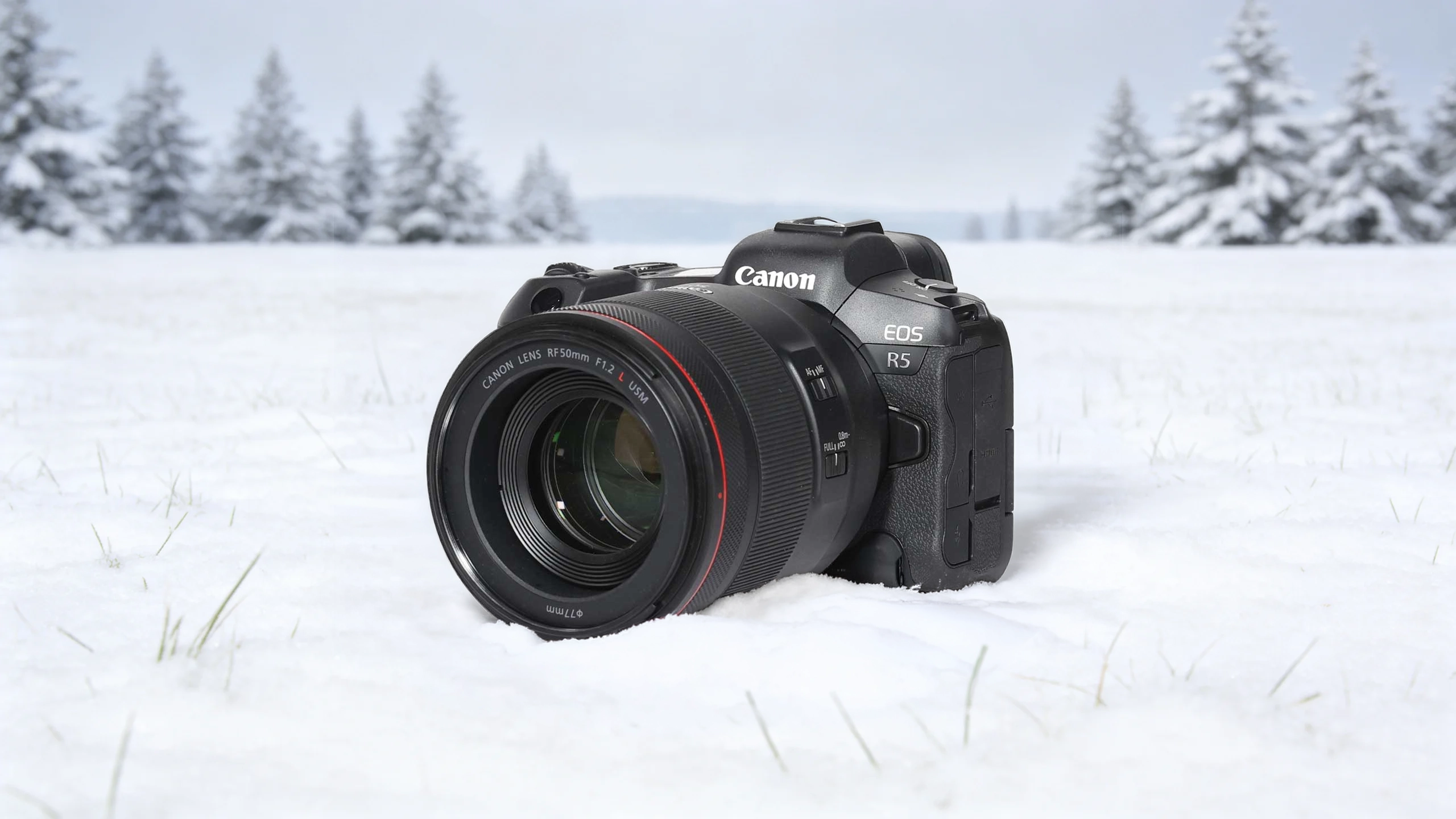
(Featured image: A Canon EOS R5 mirrorless camera equipped with an RF 50mm F1.2 L lens, resting on fresh white snow against a backdrop of frosted pine trees in a winter landscape. Photo by VanVakarnee)
When I was starting out as a photographer, I was so excited to check my images after just taking my first 30 second exposure of the Milky Way galaxy. You can imagine my disappointment when I looked at the image to find glaring, unnatural red, green and blue dots scattered across the foreground and sky.
These stubborn anomalies are known as hot pixels. They are incredibly frustrating, and unlike dust spots, you can’t just wipe them away with a sensor swab. They originate deep within the silicon hardware of your camera body.
Fortunately, managing them is straightforward once you understand the physics behind them. Here is a technical, field-tested guide to identifying, preventing, and eliminating sensor artifacts from your workflow.
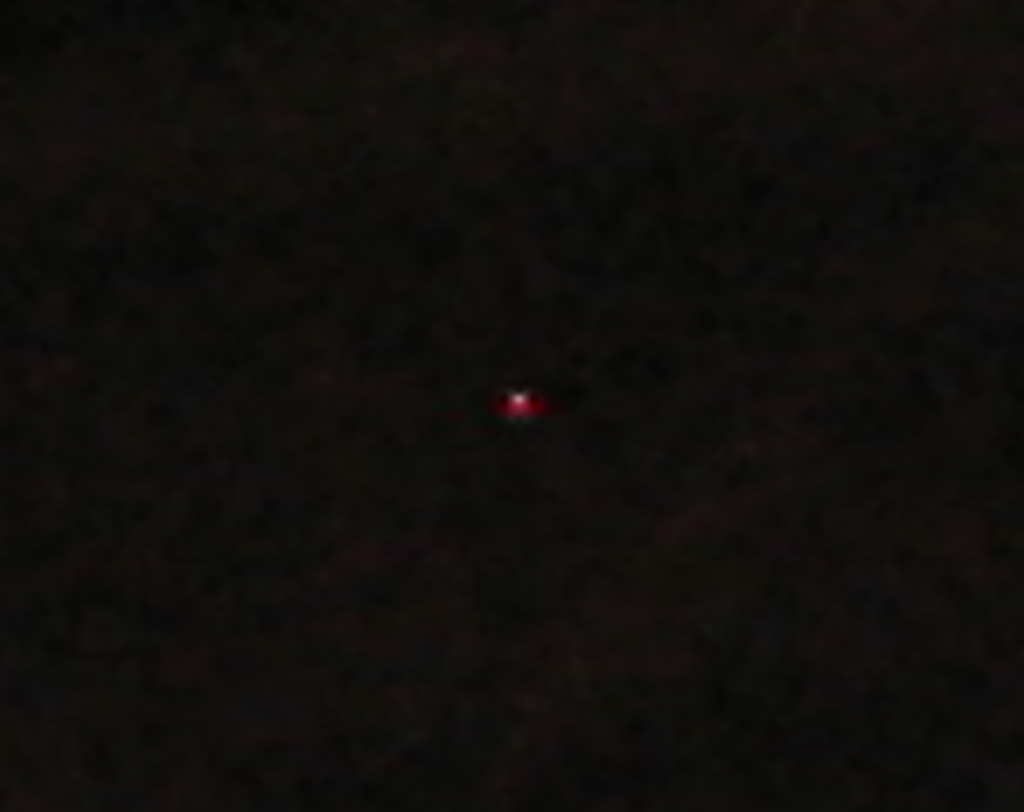
(Featured image: Close crop of a singular hot pixel. Photo by VanVakarnee.)
Hot pixels are individual dots on an image that record a higher electrical charge than their baseline value. Specifically, they manifest as brightly colored dots, usually red but sometimes green or blue.
Conversely, they only appear under very specific, demanding shooting conditions. If you shoot fast action at 1/1000th of a second, you most likely won’t encounter them unless you’re shooting thousands of frames a minute. If you push your hardware to its mechanical or thermal limits, that’s when hot pixels kick in.

(Featured image: Up close 100x crop of canon r5 photo with hot pixels. Photo by VanVakarnee.)
To understand camera artifacts you need to understand why they happen and what they look like. Attached is an example of a photo I took on the weekend, unedited. In the image you can see what look to be little dots of red light.
What’s actually happening is that during exposure, these light cavities collect photons and convert them into an electrical signal. However, achieving flawless electrical flow at a microscopic level is impossible, even for companies like Sony and Canon.
Stuck Pixels vs. Dead Pixels vs. Hot Pixels
In some cases the pixels aren’t actually hot pixels but rather dead or stuck pixels. Understanding what type of artifact is affecting your image is the best way to fix the problem at its core.
Certain pixels will behave erratically under mechanical and thermal stress. This is the main and normally only cause of hot pixels. Think long exposures and high burst photography. Luckily, removing them is quite simple.
How to Fix Hot Pixels in Your Photography
There are many ways to fix hot pixels, whether in-camera, manually, or using algorithmic computer software.
In-Camera Solutions to Fix Hot Pixels
Some newer cameras, Sony particularly with newer Alpha models like the A7 IV, FX3 and A6700, feature an in-camera Pixel Mapping function in the Setup menu to detect and neutralize hot or stuck pixels.
Canon, Nikon and the likes also have features like this, commonly referred to as the “Clean Manually” feature on Canon or the “Pixel Mapping” feature on modern Nikon Z-series bodies and some Nikon DSLRs, usually found in the Setup menu under the wrench icon.
Algorithmic Software
There are many new and up and coming software applications that use AI models to detect bright spots and hot pixels and remove them using inpainting, similar to Generative Fill in Photoshop. And if you aren’t an AI fan, don’t worry. These models are nothing like ChatGPT, which is a large language model. These are very small, targeted models that can often be run entirely on your own computer, keeping your data and privacy intact.
Here are some open source and closed source hot pixel removing apps and plugins worth knowing about.
Closed source:
Topaz DeNoise AI: Considered one of the most advanced AI denoise tools, it specializes in removing digital noise and hot pixels, particularly in high-ISO, low-light, or astrophotography scenarios.
DxO PureRAW 2/3/4: Uses “DeepPRIME” neural networks to remove noise and hot pixels from RAW files at the pre-processing stage, offering top-tier detail retention.
NoiseXterminator (Russell Croman): Often considered the best AI tool for astrophotography to specifically target noise and hot pixels. Available as a plugin for PixInsight and Photoshop.
Open Source:
HotPixels HotPixels removes hot pixel noise from long exposure images using dark frame profiles and machine learning. It Works on RAW DNG files to minimize correction artifacts. It integrates with Lightroom as a plugin.
It does kind of suck that there aren’t many open source options that work particularly well, but hopefully with the rate at which technology is advancing we will have more competitive options in the years to come that go toe to toe with established tools like Topaz Labs and DxO.
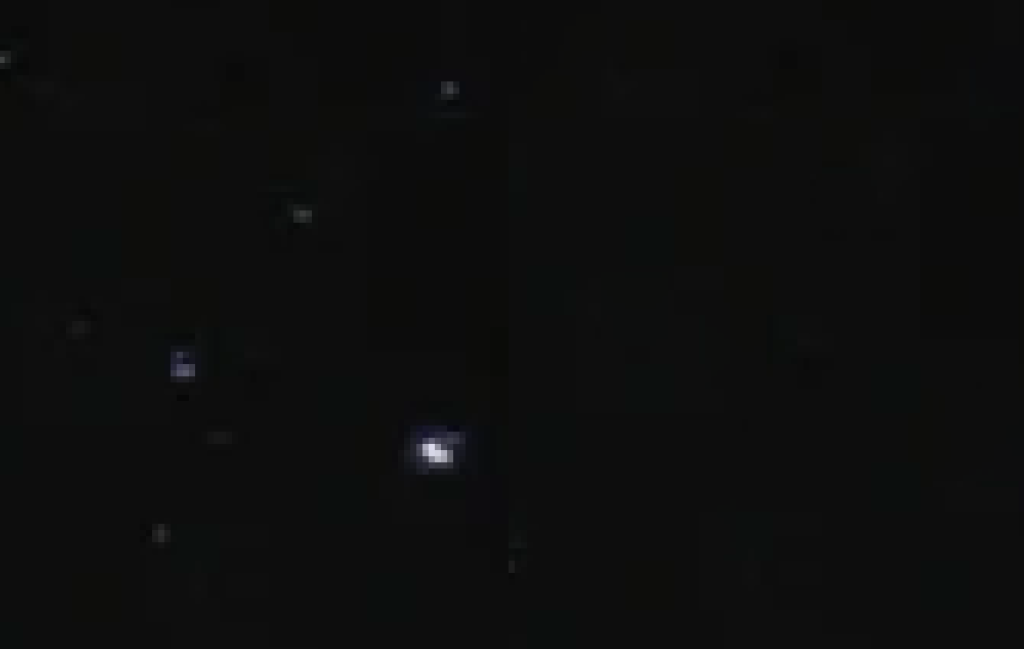
(Featured image: Side by side comparison 200x crop, of before and after hotpixel removal. Photo by VanVakarnee.)
Something that I personally do, because I like the control, is the good old trusted method of just searching around the image and using the spot healing tool. Time flies when you’re having fun as they say. Although it is tedious, the results are my favourite personally, and not all hot pixels bother me enough to fix anyway.
If you’re consistently noticing persistent bright spots in the exact same locations across multiple shoots and photos, you need to remap your sensor. Cameras often develop bad pixels as the hardware ages, and pixel mapping forces the camera software to scan the sensor for faulty pixels and correct for them.
Once accurately identified, the camera permanently ignores the electrical data coming from those specific faulty pixels. Instead, it mathematically interpolates the correct color and luminance from the immediately surrounding healthy pixels. You can easily run this necessary maintenance directly from your camera’s internal system menu.
And that’s really about it. Hot pixels are one of those things that sound scarier than they actually are. Once you understand what’s causing them and have a few go-to fixes in your workflow, they stop being a problem and start being just another thing you know how to handle.
Whether you prefer the precision of manually healing them in post, the convenience of letting your camera remap them, or handing the heavy lifting off to something like Topaz or DxO, there’s no shortage of solutions. The method you choose comes down to how much control you want and how much time you’re willing to spend.
If you take one thing away from this, let it be that hot pixels are normal. Every sensor has them to some degree, and even the most expensive cameras on the market aren’t immune. Shoot long enough and you will run into them. But now you know exactly what steps to take when you encounter them.
Are hot pixels normal on a new camera? Yes, finding a few hot pixels on a brand-new digital camera is completely normal. Manufacturing a flawless CMOS sensor with millions of microscopic photosites is practically impossible. Furthermore, thermal noise is governed by physics, making occasional electrical anomalies strictly inevitable during long exposures.
Does high ISO cause hot pixels? High ISO does not physically create hot pixels, but it severely amplifies them. When you raise the ISO, you forcefully amplify the analog voltage signal of the camera sensor. Therefore, a microscopic, otherwise unnoticeable thermal fluctuation becomes a bright, glaring dot in your final image.
How much does pixel mapping cost to fix? Most modern DSLR and mirrorless cameras feature a built-in pixel mapping function within the firmware menu, allowing you to easily fix it yourself for free. Conversely, if your older camera model lacks this specific feature, a manufacturer service center typically charges between $50 and $100 for a physical sensor recalibration.